-with-space.png)
Variance Dashboard Instruments: A User Guide
The Variance Instrument is a dashboard visualization tool designed to help you easily compare your current financial data against historical performance or budgeted/planned scenarios. This guide will help you understand how to create the instrument and use its various configurations to better gauge your overall financial performance.
Pre-Requisites for the Variance Instrument: To get the most out of this tool, ensure you have:
- Historical data going back at least one year.
- A second scenario that captures your budgeted or planned numbers for the business.
- A defined time window that you want the instrument to capture.
1. Creating the Variance Instrument
Before you can configure your data, you need to add the instrument to your dashboard.
- Navigate and Create: Go to your Dashboard page. Click the "Create" button located in the top right corner of the dashboard tab.
- Select the Tool: Choose the "Variance" icon from the dropdown menu to open the setup window.

2. Defining Your Indicators (Rows)
Once the setup window opens, you need to define the title and the specific data (indicators) you want to display.
-
Add a Title: In the top right text box, enter a descriptive title for your instrument (e.g., "Actual vs Budget" or "Q1 Performance").
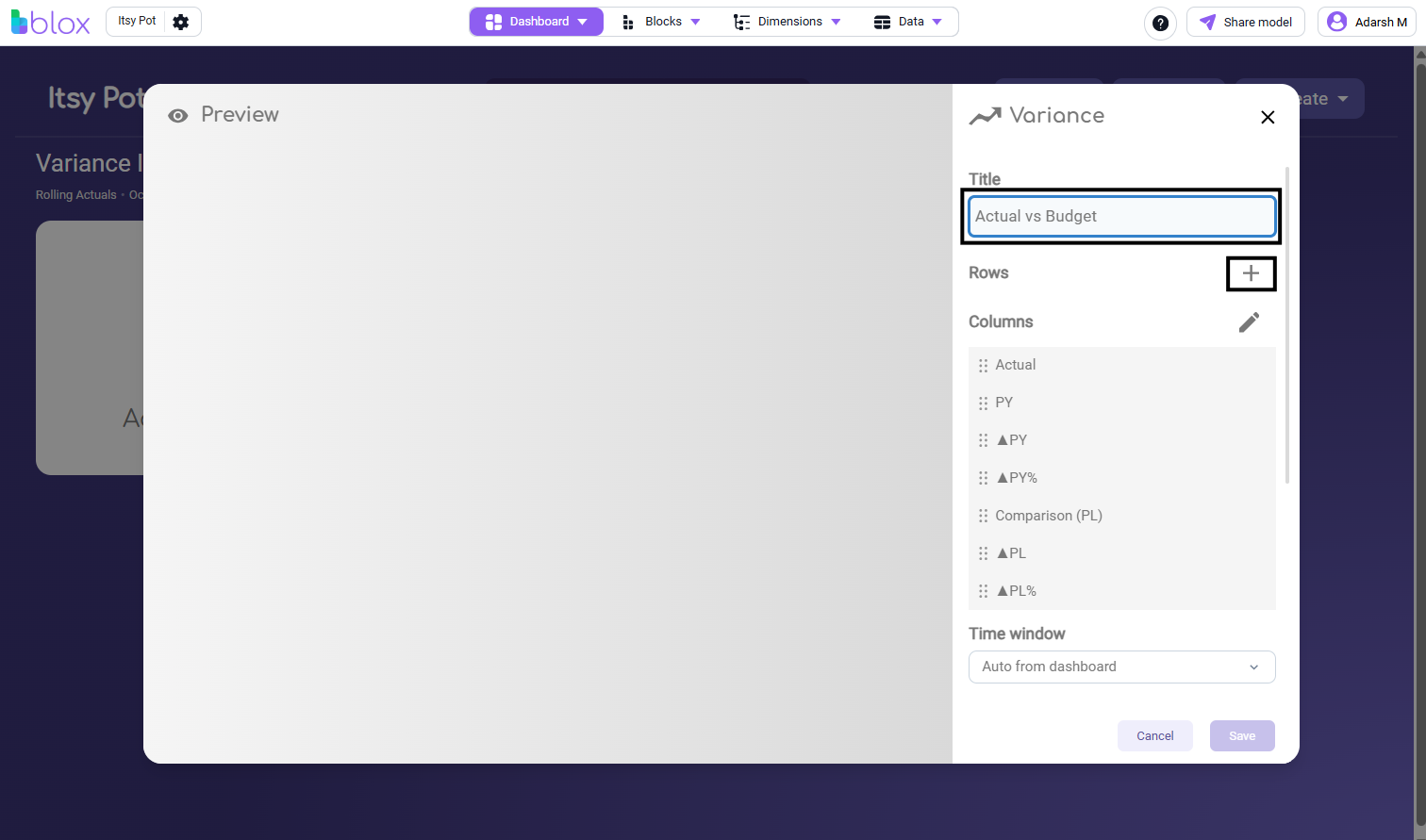
Select Indicators: Click the + (Plus) icon next to "Rows". A menu will appear allowing you to search and select the specific indicators (like Sales, Gross Profit, etc.) from your preferred data block. Once selected, click Apply.
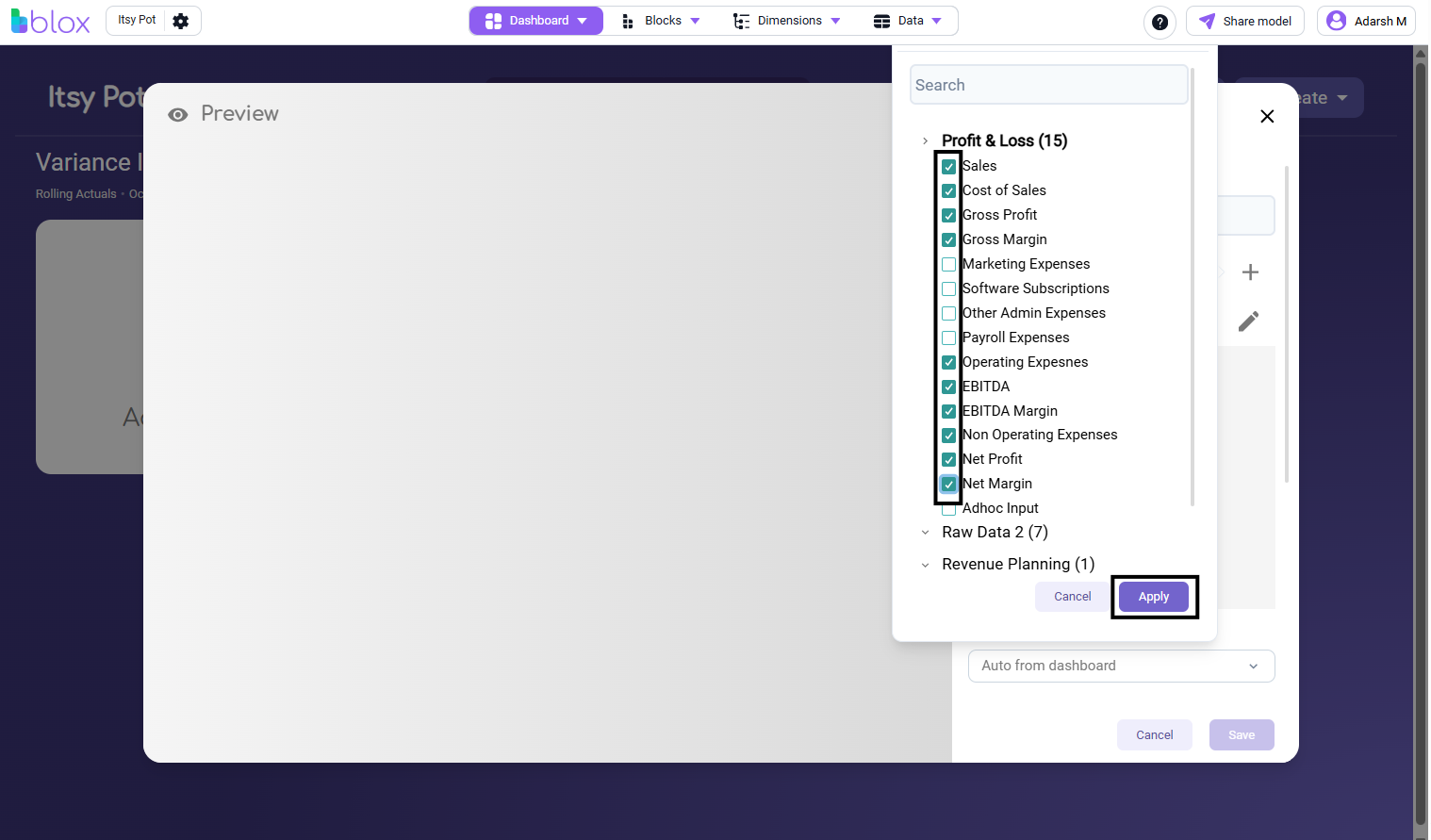
- Note: If the block from which you are selecting indicators uses dimensions, make sure to select the same dimension for all indicators so you can properly view the values for all dimension items.

3. Configuring Comparisons (Columns) and Time Windows
Next, determine what you are comparing your current data against and the timeframe for that data.
- Set Comparison Columns: Click the Pencil icon next to "Columns". This opens the Column Settings where you can select which columns to show next to your Current Year Values. You have options to display the Previous Year (PY) or a specific plan/scenario(PL) based on your needs.

- Adjust the Time Window: Use the "Time window" dropdown to select the required timeframe for your data. If you don't select a specific window (like "Year to Date"), the instrument will use the default setting, which is "Auto from dashboard".

4. Formatting and Saving
To make your dashboard highly readable, you can customize the appearance of individual data rows before saving.
- Apply Formatting: Click on any indicator in the table preview on the left side of the window. Use the formatting options on the right side to adjust text styles, colors, and indents for that specific row.
- Save Instrument: Once you are satisfied with the preview and formatting, click the Save button at the bottom right to add the Variance instrument to your dashboard page.

5. Using the Instrument on Your Dashboard
Once added to the dashboard, the Variance instrument responds dynamically to global filters, allowing you to gauge performance across different parameters without needing to edit the instrument itself.
- Change Scenarios: Click the Scenario dropdown at the top of the dashboard page to easily switch your base scenario or compare your data with other scenarios (e.g., changing from "Actual" to "Budget").

- Adjust Time Periods: Click the Date/Time preset dropdown at the top of the dashboard to instantly change the time window being analyzed across the instrument (e.g., shifting from "Current Month" to "This Financial Year").
